Almost everyone who works online has had this thought at some point: “I have an idea for a tool or an app. I just don’t know how to code.”
Maybe you’ve priced out a WordPress plugin developer and got quoted anywhere from ₹10,000 to ₹50,000, with a timeline stretching into weeks. That used to be the only real option if you couldn’t code.
In this guide, we’ll show you in the given video exactly how we built a fully functional Image Resizer Tool for WordPress using ChatGPT for planning and Google Antigravity for building, from the initial idea to a working plugin running on a live WordPress website. We didn’t rely on a development agency or spend months writing code. Instead, we used AI to plan the project, generate the plugin, and launch the first working version.
This isn’t a theoretical tutorial or a list of AI tips. It’s a real build-in-public case study based on our own experience.
We’ll cover exactly what we typed into each tool, what came out, which hosting actually makes sense for a project like this, where to buy your domain, and the questions beginners usually ask once they try this themselves.
By the end of this guide, you’ll learn:
- How to plan a WordPress plugin using ChatGPT.
- How we used Google Antigravity to generate the plugin.
- The exact prompts that produced the best results.
- How to install and test the plugin on WordPress.
- Which hosting is best for image-processing tools?
- Where to buy a domain name for your project.
Before that, I’m giving you a short intro about Google Antigravity.
What Is Google Antigravity, Really?
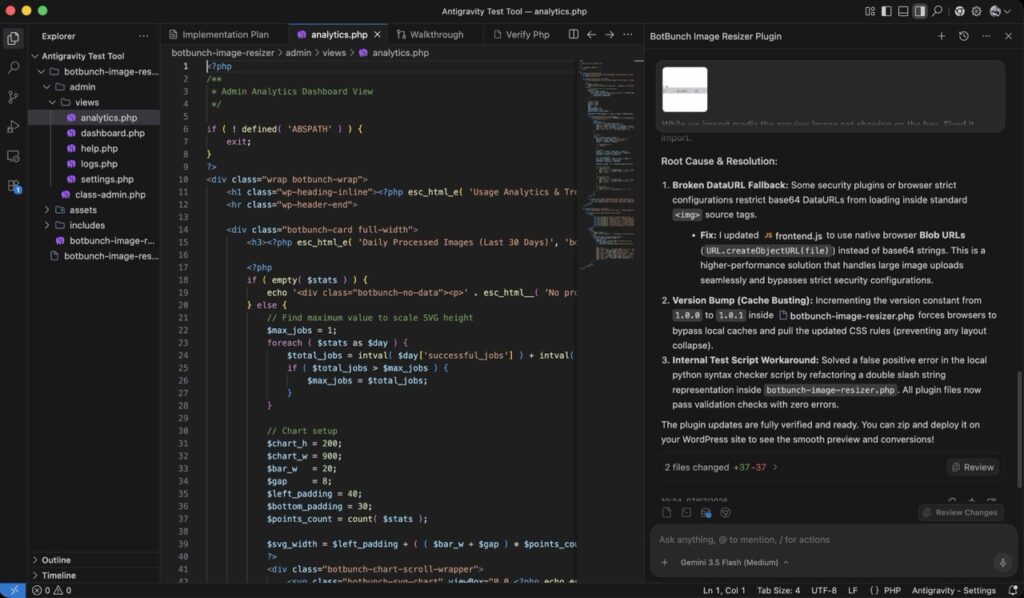
Google Antigravity is Google’s agent-first development platform. Instead of just answering questions like a chatbot, it acts more like a virtual developer sitting inside an editor: you describe what you want to build in plain English, and it plans the project, writes the code, tests it, and reports back what it did.
It launched in public preview in November 2025, and Google expanded it into a full ecosystem — including a standalone desktop app and a command-line version — with the Antigravity 2.0 update announced at Google I/O in May 2026. It supports multiple AI models under the hood, including Google’s own Gemini models as well as Anthropic’s Claude and open-source options, so you’re not locked into one model.
Where ChatGPT Fits In
Google Antigravity is excellent at writing code once it knows exactly what to build. It’s less useful if you hand it a vague, one-line idea. That’s where ChatGPT comes in.
We used ChatGPT purely as a planning partner: turning a rough idea (“an image resizer tool for WordPress”) into a clear, structured requirements list that Antigravity could act on without guessing. Think of ChatGPT as the person writing the project brief, and Antigravity as the developer executing it.
Step-by-Step: How We Actually Built It
Watch the Complete Build Process
Prefer watching instead of reading? We’ve embedded the complete video tutorial below, where we walk you through the entire process of building this WordPress Image Resizer Tool using ChatGPT and Google Antigravity. You’ll see the exact prompts we used, how the plugin was generated, installed, and tested on a live WordPress website, along with practical tips and lessons we learned throughout the project.
Step 1: Plan the idea with ChatGPT
We opened ChatGPT and gave it this exact prompt:
“I want to create an Image Resize tool on WordPress. I have shared hosting. Please list the requirements, also make a list to gather data and create a complete plugin which automatic create database, provides an admin panel in the WordPress dashboard, and mobile friendly UI/UX design for users."
ChatGPT gave a complete breakdown: project overview, required features, and a step-by-step plan. We copied that response directly into Google Antigravity’s prompt box — no rewriting needed.
The complete prompt we used in this project – Download Prompt
Step 2: Set up the project in Antigravity
- Downloaded and opened the Antigravity IDE, then logged in.
- Created a new project folder (we named ours “Antigravity Test Tool”) to keep all the generated files together.
- Pasted the ChatGPT plan into the Antigravity prompt box and hit Enter.
- Antigravity asked for a few permissions (like file access) before it could start — we reviewed and approved these.
Step 3: Review the Implementation Plan
Antigravity generated an “Implementation Plan” before writing any code — essentially its own version of a project brief. We checked it against what we actually wanted (database setup, admin panel, mobile-friendly design) and confirmed everything was covered. You can edit this plan directly if something’s missing before letting it proceed.
Step 4: Let it write the code
Once we clicked Proceed, Antigravity started generating the plugin code. It asked for further permissions along the way and, at the end, produced a “Walkthrough” summarizing what it built. We reviewed the changes and accepted them.
Step 5: Install the plugin on WordPress
- Compressed the generated project folder into a .zip file.
- Logged into the WordPress dashboard and went to Plugins → Add New → Upload Plugin.
- Uploaded the .zip, clicked Install, then Activate.
Step 6: Create a page and add the shortcode
We created a new WordPress page called “Image Resizer.” To display the plugin on that page, we needed a shortcode — so we went back to Antigravity and gave it one more simple prompt:
Shortcode
"Create a shortcode to run the plugin"
Antigravity generated the shortcode inside its Walkthrough panel. We copied it into the “Image Resizer” page, published it, and the tool was live and testable — start to finish, in under an hour.
How to Plan a Project Like This Before You Start
Building fast with AI still goes better with a little planning up front. Before you open any AI tool, sort out these basics:
- Define the one job your tool does. “Resize images” is specific. “A photo editing suite” is not — and vague scope is the #1 reason AI-generated plugins get messy.
- List your must-have features only (admin panel, database, mobile UI) and treat everything else as a “maybe later.”
- Decide where it will live: a WordPress plugin, a standalone web app, or a browser extension — this changes what you ask the AI to build.
- Have your hosting and domain ready before you start testing, so you’re not blocked halfway through (see the next two sections).
- Plan to test on a staging site or a fresh page first, not your main live site, especially the first time.
Which Hosting Is Best for This Kind of Project?
The video used shared hosting, and for a first plugin or small tool, shared hosting is genuinely fine — you don’t need anything more powerful to test an idea. Here’s how the popular options stack up for beginners, organized by what you actually need:
Over the last five years, I’ve hosted multiple websites and projects on Hostinger. Throughout that time, I’ve been impressed by its fast loading speeds, dependable uptime, responsive customer support, and budget-friendly plans. That’s why it’s the hosting provider I personally recommend for beginners and indie developers building WordPress plugins or SaaS projects.
| Best For | Pick | Approx. Price | Why It Fits |
| Absolute beginners / cheapest start or Testing | Managed hosting for WordPress | ~$1.99–2.99/mo | Free domain, NVMe storage, one-click WordPress install, AI setup assistant |
| Growth (5k–100k users/month) | VPS Hosting | ~$6.50–22.99/mo | Better performance and reliability |
| Scale (100k+ users/month) | Cloud Hosting | ~$6.50-19.73/mo renewal | High traffic and multiple tools |
Note: Shared hosting works for testing, but keep this in mind before you launch to real users: Image resizing is CPU-heavier than a normal blog page. Very cheap or oversold shared plans can slow down or hit resource limits once real traffic arrives.
If your tool starts getting consistent visitors, plan to move up to a cloud or VPS hosting plan, don’t wait until the site crashes to think about it.
Always confirm the renewal price, not just the discounted first-year price, most hosts jump significantly on renewal.
Where to Buy Your Domain Name?
You don’t need hosting and a domain from the same company, but buying both together is often the simplest route for beginners since it usually includes a free domain in year one.
| Best For | Registrar | Notes |
| Beginners bundling with hosting | Hostinger | Free domain included with most hosting plans; free WHOIS privacy |
| Cheapest long-term renewal (.com) | Namecheap | Low renewal rates, no aggressive upsells, free privacy protection |
| Cheapest .in domains for Indian audiences | BigRock / MilesWeb | Frequent low first-year promotions on .in extensions |
| Most recognizable, widest support | GoDaddy | Largest registrar globally, strong local payment support in India |
If your tool is aimed mainly at an Indian audience, a .in domain is worth considering for local trust and pricing. If you want a global, brandable presence (or plan to pitch this as a SaaS product later), .com is still the safer long-term choice.
Who Should Actually Try This?
Students
This is one of the lowest-cost ways to build a real, working project for your portfolio or resume — no dev team required, and the whole build fits in an afternoon.
Freelancers & Bloggers
If you run a blog or take on client sites, a tool like this can become a lead magnet or a small paid add-on for clients, without hiring anyone.
Entrepreneurs & First-Time Founders
Use this exact workflow to test a SaaS idea cheaply before investing real money in a developer. If people actually use your rough version, that’s your signal to invest further.
General Curious Beginners
Even if you never plan to launch anything, this is a genuinely good way to understand what “AI-assisted development” looks like in practice — not the marketing version, the real one.
FAQs
1. Is Google Antigravity free to use?
Yes, it’s currently available at no cost for individuals in public preview, with usage limits based on the model you choose. Since it’s still in preview, this could change, so check the official pricing page before relying on it long-term.
2. Can I really build a WordPress plugin without knowing how to code?
You can build one without typing code yourself, YES. But you still need to describe your idea clearly, review what the AI generates, and test it — so basic comfort with WordPress and a little patience still helps a lot.
3. What’s the difference between ChatGPT and Google Antigravity in this process?
ChatGPT is best used for planning — turning a vague idea into a clear requirements list. Google Antigravity takes that plan and actually writes, tests, and packages the code. They work better together than either does alone.
4. Which hosting should I choose to test a new plugin — shared or cloud?
Shared hosting is enough to build and test a small tool like this. Move to Cloud or VPS hosting only once real users start visiting regularly, since image-processing tasks use more server resources than a typical blog page.
5. Where should I buy my domain name from in India?
Hostinger is the simplest if you want it bundled with hosting; Namecheap is a solid low-renewal option for .com domains; and BigRock or MilesWeb often have the best deals specifically for .in domains.
6. Do I need a developer to make this live on my WordPress site?
No. Installing the plugin is the same simple upload-and-activate process as installing any other WordPress plugin, no developer required.
7. Is a plugin like this safe to add to a live, already-running website?
Test it on a staging site or a brand-new page first, not your main production site, especially on your first attempt. Once it’s stable, moving it to a live page is low-risk.
8. How much does it actually cost to launch a small tool this way?
Realistically: hosting (roughly $2–5/month), a domain (roughly ₹500–1,000/year), and your AI tools, several of which have solid free tiers. You can get a working first version live for well under ₹5,000 total.
9. Can beginners in India use this to start earning as freelancers?
Yes — this workflow is a genuinely practical way to build small tools for clients or your own niche site without hiring a developer, which keeps your costs low while you’re starting out.
10. What if Google Antigravity generates buggy or incomplete code?
Review the Implementation Plan and Walkthrough carefully before accepting changes, and always test the tool yourself before publishing. Treat the AI’s output as a strong first draft, not a guaranteed final product.
11. Is this approach good enough for a full SaaS product, or just small plugins?
It’s a great way to build and validate a first version. For a serious, revenue-generating SaaS product with many users, you’ll eventually want a developer or dedicated team to handle security, scaling, and support — but this is a legitimate way to prove the idea first.
12. Which AI tool should a total beginner start with if they’ve never coded before?
Start with ChatGPT to get comfortable describing your idea clearly — that skill matters more than the tool. Then move to Google Antigravity once you have a clear plan you want built.
Final Thoughts
A few months ago, building your own tool without coding skills or a developer budget felt close to impossible. Pairing ChatGPT for planning with Google Antigravity for building genuinely changes that — we went from a one-line idea to a live, working WordPress plugin in under an hour.
If you’ve been sitting on a tool idea, this is a realistic, low-cost way to actually try it. Start small, plan clearly, pick hosting that matches your stage, and let the AI handle the typing while you handle the thinking.
Ready to try it yourself? Open ChatGPT, describe your idea in plain English, and see what plan comes back — that’s the only first step you need.
Why Trust Us!
We didn't just read about Google Antigravity — we opened it, gave it a real prompt, watched it write the code, installed the plugin on an actual WordPress site, and tested the shortcode on a live page. Every step in this post is pulled from that hands-on session, not a press release.

About Naseeb Akhter
The founder of BotBunch, where he researches, tests, and reviews the latest AI tools, automation software, and SaaS platforms. Along with the BotBunch editorial team, he helps creators, students, professionals, and businesses discover the best AI solutions through hands-on testing, honest reviews, detailed comparisons, and easy-to-follow guides.
Join us via email and social channels to get the latest updates straight to your inbox.